What this video covers
Two ways in
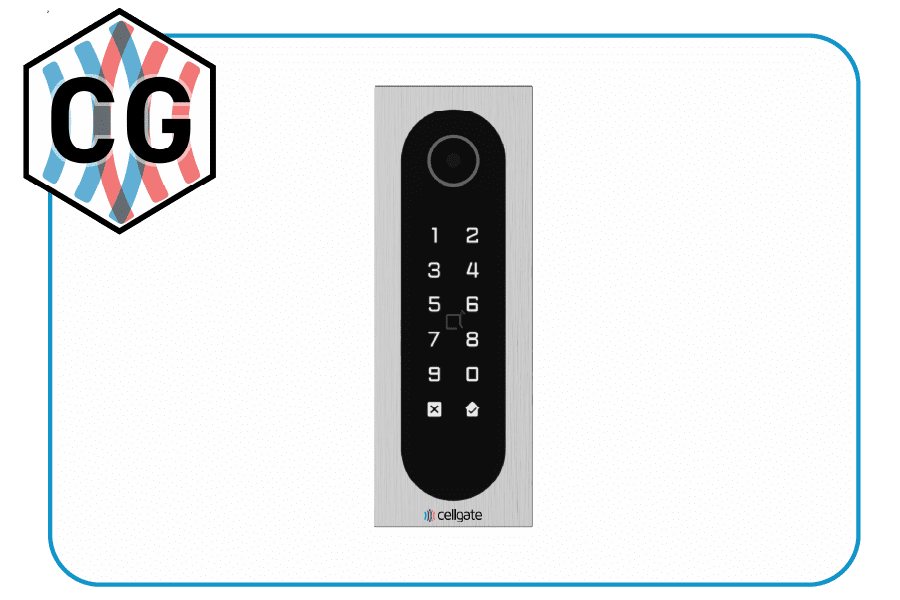
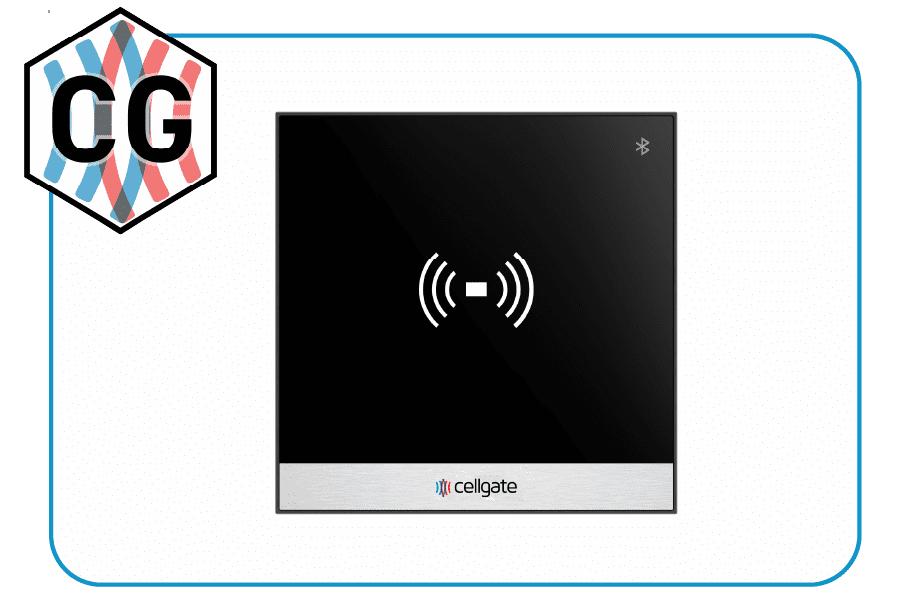
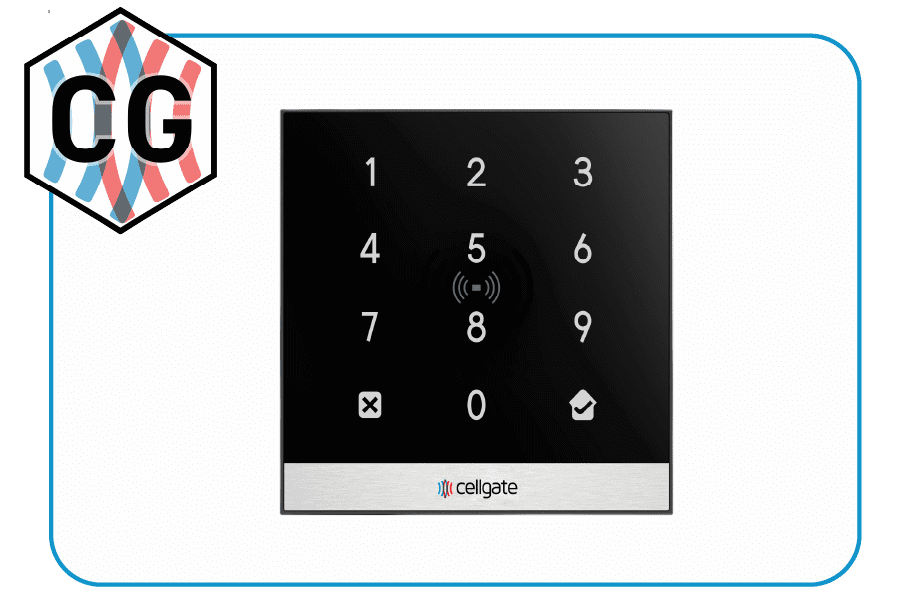
The Halo reader gives you dual-access entry: a physical credential for tap-and-go, or your phone for hands-free Bluetooth access. Only authorized credentials open it, and either method takes seconds.
1) Card or fob: tap and go
- Tap your credential card or key fob against the reader.
- Wait for the reader to verify it and unlock access.
Quick, secure, contactless, and nothing to set up. This is the method that works the moment your credential is issued.
2) Bluetooth: a one-time setup in the app
To use your phone instead of a card, set up Bluetooth once in the CellGate app:
- Install the CellGate app on your phone.
- Open the menu and go to where your Bluetooth credentials are managed.
- Select your Bluetooth Personal Key.
- When prompted, grant CellGate permission to use Bluetooth.
- Turn on Enable Bluetooth Background Access, which is what keeps the connection ready when the app is not open.
That background-access step is the one people miss. Without it the reader will not see your phone unless the app is open on screen, which defeats the point of wave-to-unlock.
Using your phone at the reader
Once Bluetooth is set up, entry is hands-free:
- Keep your phone on you, in a pocket or bag.
- Wave your hand in front of the Halo reader.
- The reader connects to your phone and opens the gate.
The Halo is one of several CellGate readers. For the full range, including RFID readers, keypads, and other Bluetooth-enabled devices, visit the CellGate readers page.