Who this is for. Technical support team members and installers configuring CG Readers & Credentials for a property through the TrueCloud Connect platform.
What this video covers
Find the Wiegand port
Reader configuration starts inside the account in the TrueCloud Connect platform:
- Log in and click the Accounts tab at the top of the screen.
- Use the search to find the account you are working on.
- Inside the account, open the Kits tab, which is where reader hardware connects.
- Locate the Wiegand port, click it, and select Config.
1) Configure the reader: type, debounce, visibility
The configuration page asks you to set:
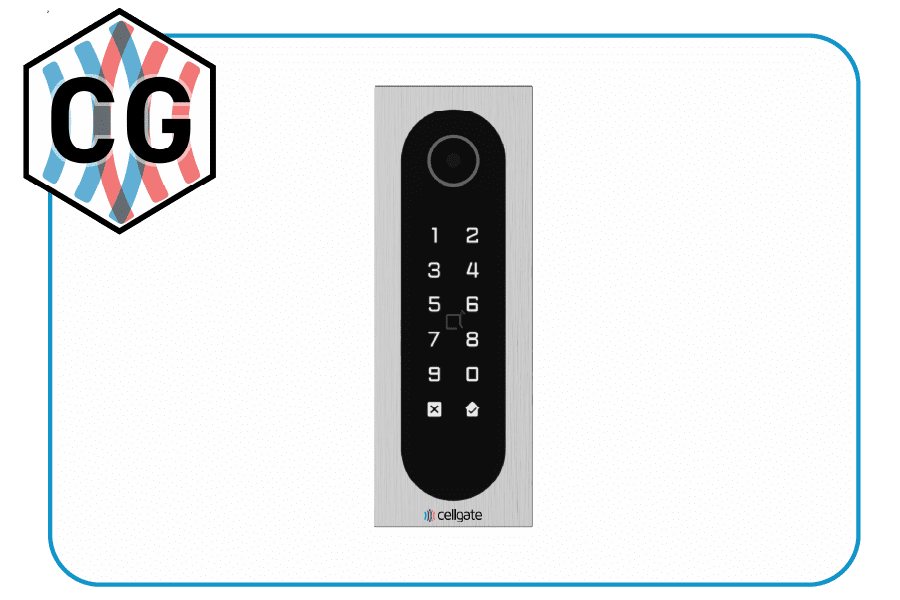
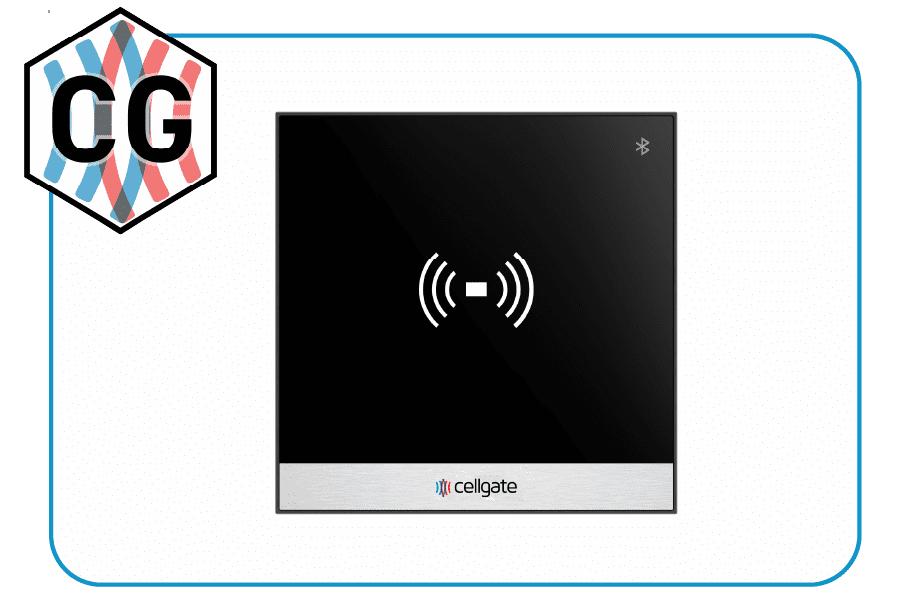
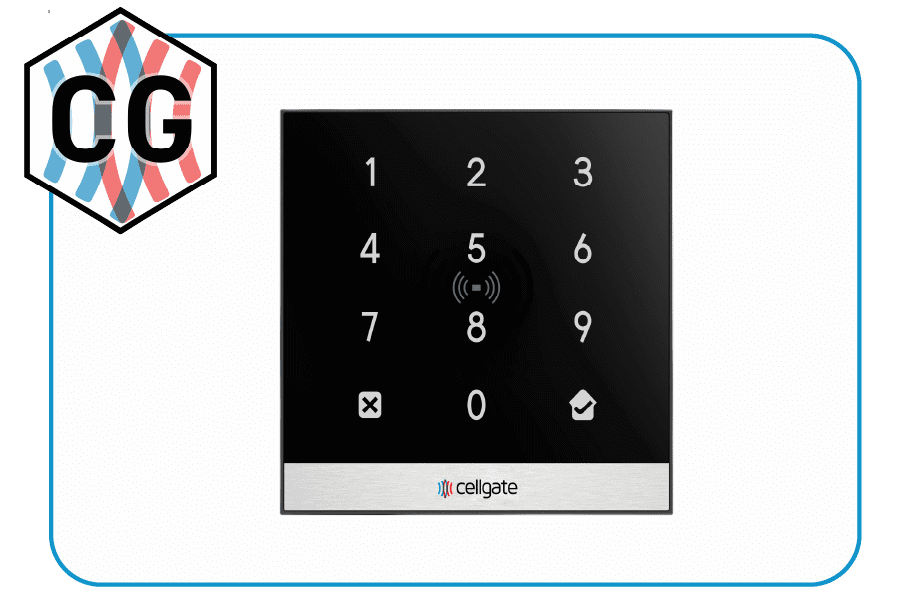
- The reader type: keypad, RFID, or a CG series device such as the Infinity, Halo, or Digit.
- The debounce time, which controls how quickly the reader will accept a second read after the first, preventing accidental double-reads.
- The visibility settings for the reader.
2) Enable facility codes: at the property level
Facility codes are enabled at the property level, which lets a whole batch of credentials sharing one facility code work across the property without configuring each card individually. Turn this on where the property uses facility-coded cards, then activate CG Readers & Credentials on the account.
The four access methods
With the reader configured and CG Readers & Credentials active, four ways in become available, and which apply depends on the reader model:
- QR or PIN Code access through Visitor Passes.
- Bluetooth contactless entry through the CellGate app.
- Numeric keypad codes.
- CellGate encrypted card credentials.
Managing all of this from one screen is the point of the portal: you set a reader up, or revoke and change access, from anywhere rather than at the device. For the reader hardware itself, see the CellGate readers page.